

Presenter view
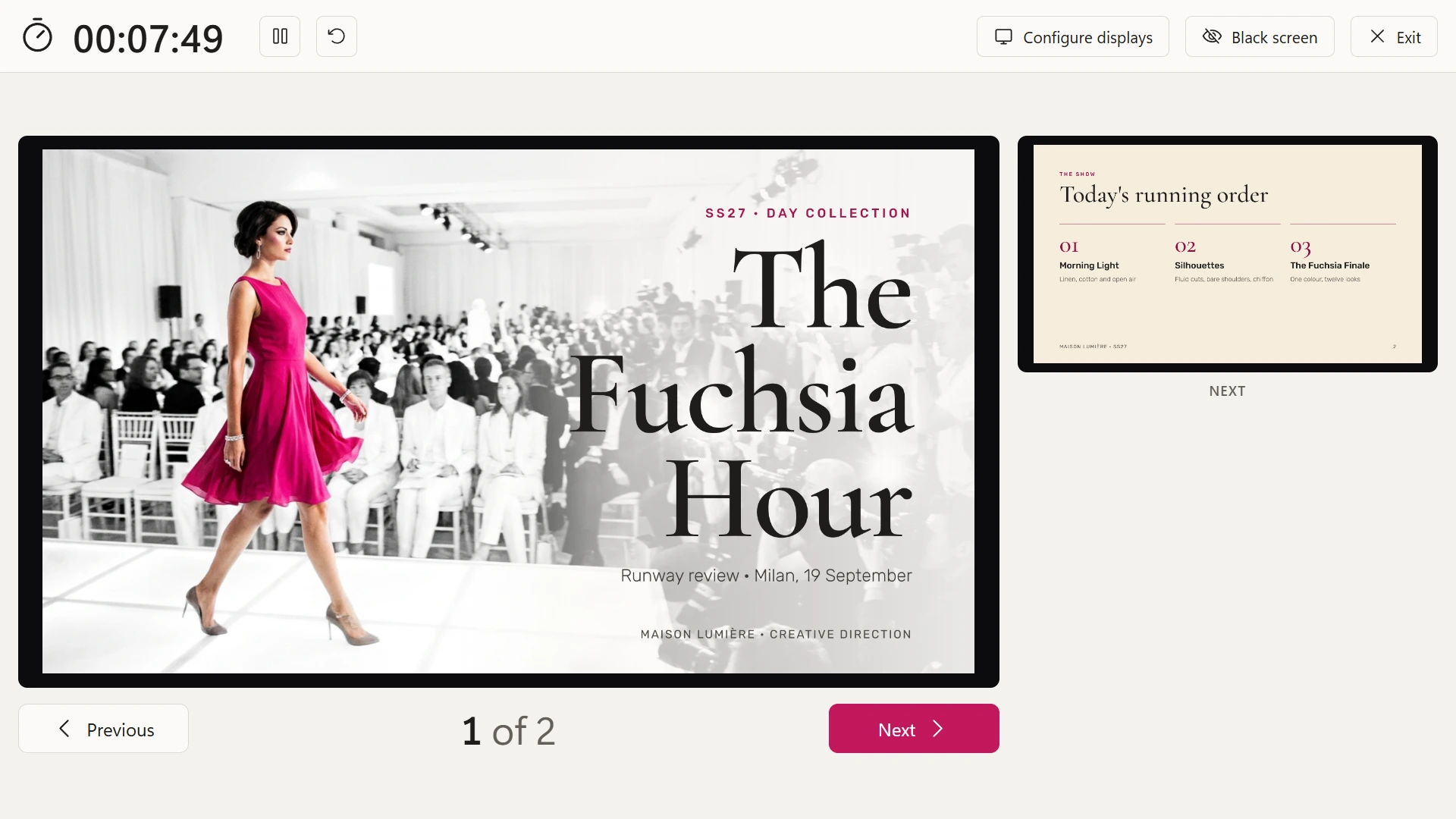
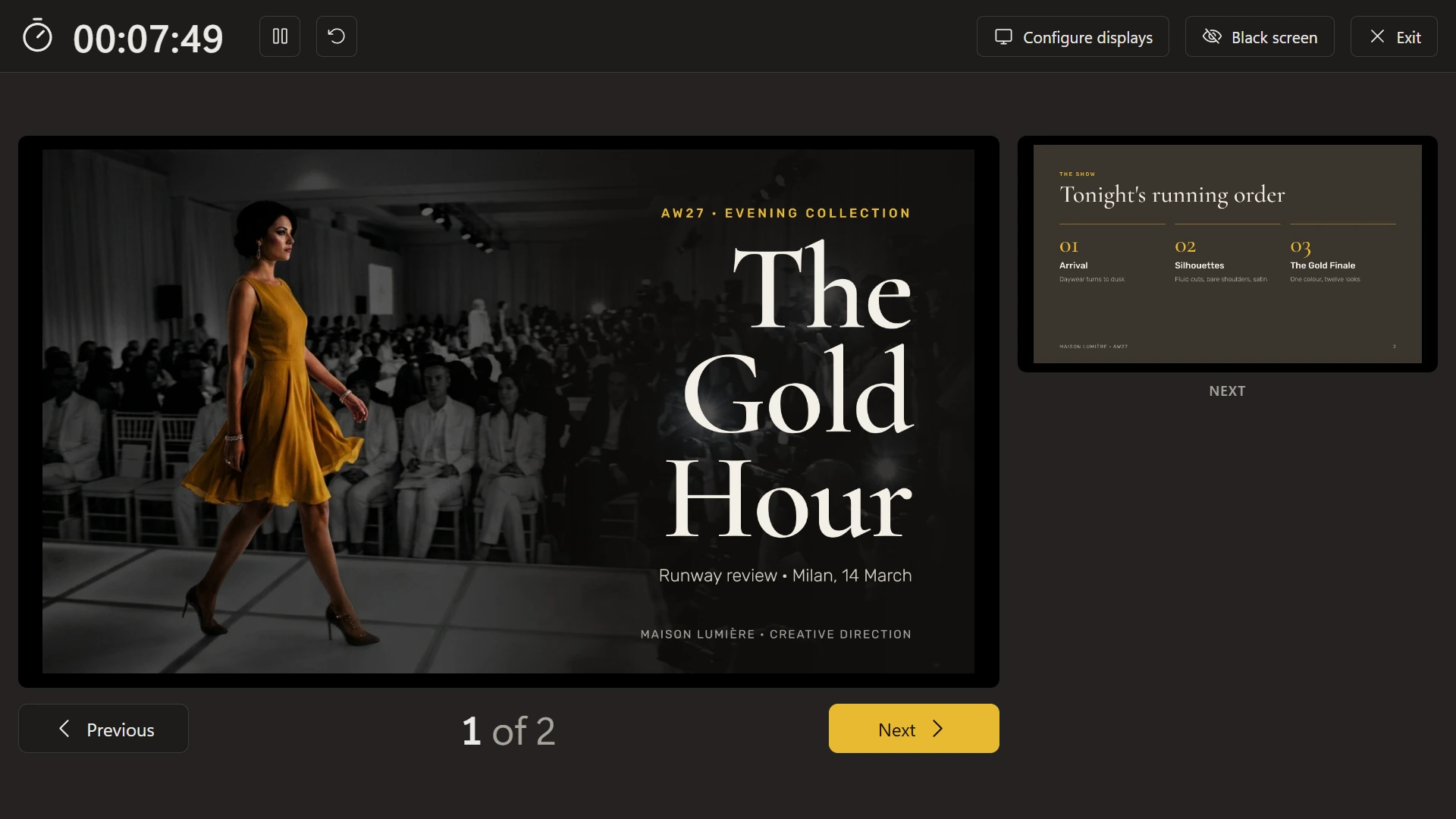
Current slide, next slide, timer and “Page 3 of 30” on your screen. The audience only sees the slide.
 PDF Diva
A presenter view for any PDF.
Sooner or later, a speaker hands you a PDF. PDF Diva presents it like any slide deck: the slide on the projector, the next slide and a timer for the speaker.
PDF viewers can go fullscreen, but they have no presenter view. The speaker ends up turning around to read the slides, or the screens get mirrored and the audience sees the viewer’s toolbars.
PDF Diva gives a PDF the presenter view that slide decks have always had.
Once, on the computers you present from. From the Microsoft Store or GitHub.
Drag it onto the window, or choose PDF Diva in “Open with”.
The slide goes to the projector and the presenter view to the other screen. F5 works too.
No account, no telemetry, no internet connection. Installing it doesn’t change your default PDF viewer.
It does one job and does it reliably, with any remote and any number of displays.
Current slide, next slide, timer and “Page 3 of 30” on your screen. The audience only sees the slide.
Page Up, Page Down and the arrow keys, so every standard presentation remote just works.
Fullscreen on the projector, and you choose what each display shows, even mid-show. Plug and unplug without losing the show.
Press B to black out the screen, press it again to bring the slide back.
The PDF renderer comes built in. No Acrobat, no Office, no surprises on someone else’s laptop.
No account, no ads, no telemetry. The code is on GitHub.
The whole show runs from the keyboard or a clicker. No menus in front of the audience.
| Start the show | F5 from page 1 Shift+F5 from the current page |
|---|---|
| Next slide | Page Down → ↓ Space Enter |
| Previous slide | Page Up ← ↑ Backspace |
| Black screen | B . |
| First / last slide | Home End |
| End the show | Esc |
Install it once, and the next PDF that turns up is just another talk.